Tasks: running your day from one list
Adding tasks fast, delegating, dates and Sleep, the three views, Focus, and what lives inside a task.
Every task in Jupiter Day has one owner and one date. That rule is what makes the list trustworthy: if it is on the list with a name and a date, it is real; if it is not, nobody has committed to it. This guide covers the Tasks page from top to bottom: adding tasks quickly, delegating, dates and Sleep, the views, working on several at once, Focus, and what lives inside a task.
Where it is. Click Tasks in the bookmarks row under the top bar, or open Modules (top left) and choose Tasks. On a phone, tap Tasks in the bar at the bottom of the screen.
1. The Tasks page
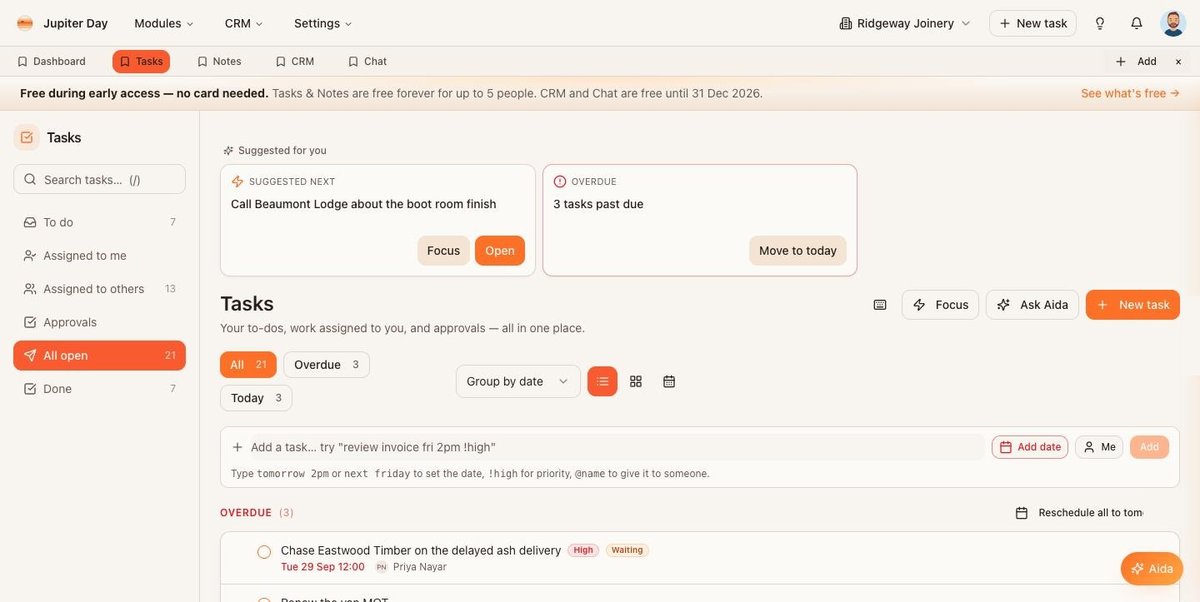
The Tasks page: lists down the left, filters and views across the top, quick add, then the tasks.
The left-hand menu splits your tasks into lists. The number on the right of each is how many are in it.
To do— tasks you made for yourself.Assigned to me— tasks someone else gave you.Assigned to others— tasks you gave to someone else.Approvals— decisions waiting on you.All open— everything not yet done, in one list.Done— recently completed.
Above the lists is Search tasks… — press the / key from anywhere on the page to jump into it.
The top of the main area. In the top right-hand corner: Focus (section 7), Ask Aida, and the orange + New task button. Under the heading: filter pills All, Overdue, Today (each with a count); a Group by drop-down (date, assignee, priority, status or tag); and three small icons that switch the view — list, board and calendar (section 5).
Suggested for you. At the top of the page Aida shows the one task she thinks you should do next, with Focus and Open buttons.
2. Adding a task
2.1 The quick way: type one line
The box under the filters reads Add a task… try "review invoice fri 2pm !high". Type in plain words and press Enter. The quick add understands:
- Dates —
today(5pm),tonight(8pm),tomorrow(9am),friorfriday(the next one, 9am),next monday,in 3 days,in 2 weeks. - Times —
2pm,9.30amwritten as9:30am, or14:00. A time on its own means today (or tomorrow if that time has already gone). - Priority —
!highor!low. - People —
@Dangives the task to Dan (use their name as it appears in the app, or the first part of their email). TheMebutton beside the box shows who will get it.
As you type, a line under the box shows what it understood — the date, the priority, who it is going to — so you can check before you press Enter. Every task needs a date: if you do not type one, click Add date and choose Today, 5pm, Tomorrow, 9am, Next Monday, 9am or pick a date and time. The task will not save without one.
Press the T key anywhere in the app and the same box opens as a small window (Add a task). It stays open so you can add several in a row; press Esc to close it.
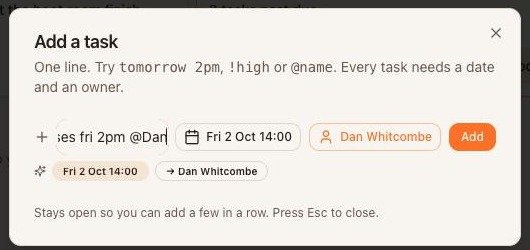
The Add a task window (press T anywhere in the app). Typing "fri 2pm @Dan" has been understood as Friday 2 October at 14:00, for Dan.
On a phone, the Today page has the same one-line box; anything you add there is due today at 5pm and assigned to you.
2.2 The full form
For anything with more detail, click + New task (top right of the page, and also in the top bar on every page) or press N. The form has:
Title— what needs doing.Assign to— who owns it. Defaults to you. (Only shown when your workspace has more than one person.)Status— To do, In progress, Waiting on someone, Snoozed, Done or Cancelled (section 4).Due dateandTime— the date is required. If you leave the time empty the task is due at 09:00.Repeats— Every day / Every weekday / Every week / Every 2 weeks / Every month. Choosing one showsRepeat until, an optional final date after which no more copies are made.Priority— Low, Normal or High. High tasks are highlighted in the calendar.Notes— detail, links, bullets and checkboxes. Type-for a bullet or[]for a checkbox.Visible to teammates— on by default. Switch it off to keep the task private to you.Waiting on someone— a shortcut for the Waiting status.Add tag— label the task so you can group by tag later.
Click Create task. Attachments, subtasks and comments (section 8) appear once the task exists — open it again to add them.
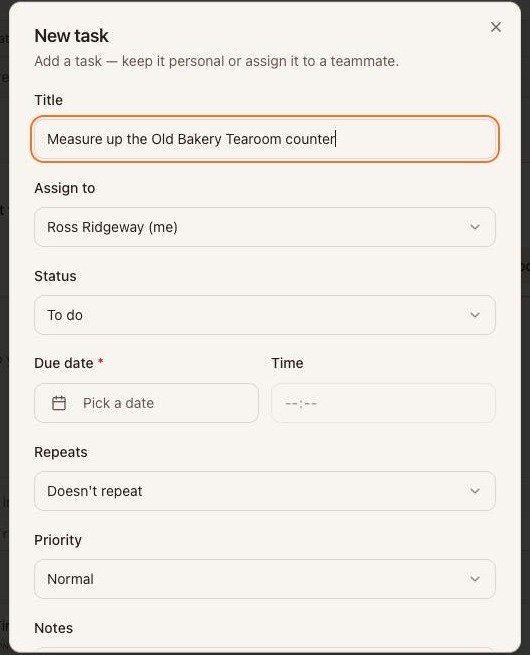
The New task form, top half: title, owner, status, date, time, repeats, priority.
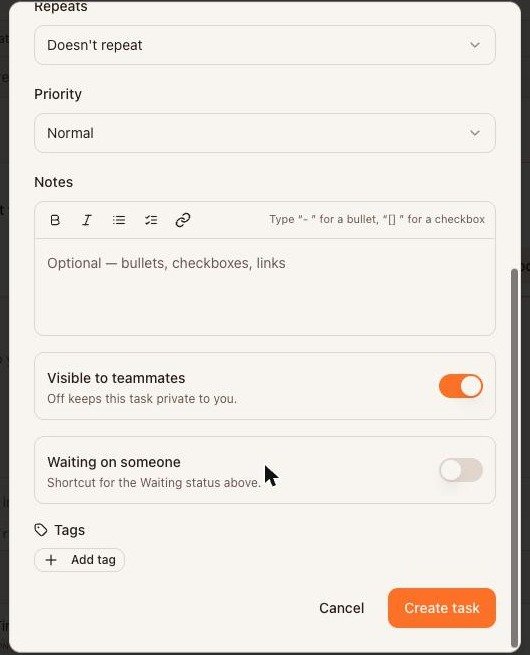
The New task form, bottom half: notes, visibility, waiting, tags.
3. Reading a task row

A task row with the mouse over it.
Each row shows the title, the due date and time (for example Wed 30 Sep 17:00), and who owns it. The circle at the left-hand end is the task's status — click it to mark the task done. Move the mouse over a row and more appears:
- A second circle to the left of the status circle — selects the row so you can act on several tasks at once (section 6).
- Pencil (far right) — open the task to edit it.
- Moon — Sleep the task (section 4.2).
- Clock with an arrow — the task's history: every change and who made it.
- Bin — delete the task.
In Assigned to others a Nudge button also appears on each row: it sends the owner a gentle reminder without adding a comment. You can nudge the same task once every four hours. A reassign control lets you hand the task to someone else; they are told.
A paperclip with a number means the task has attachments.
4. Dates, times, Sleep and statuses
4.1 Dates and times
The date and time are shown on every row in the form Wed 30 Sep 17:00 (the year is added when it is not this year). The overdue count and the red Overdue group are driven by this date, so keep it honest — move a task rather than let it go red.
On a phone, tapping the date field slides a calendar up from the bottom of the screen. Weeks start on Monday.
4.2 Sleep
Not today? Sleep the task instead of re-dating it by hand. Move the mouse over the row and click the moon icon (on a phone, use the ⋮ menu on the row; inside the task form there is a Sleep link next to Due date).
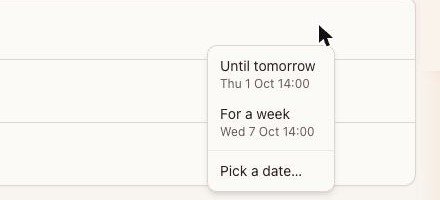
The Sleep menu.
Until tomorrow— the next working day, at the task's own time.For a week— seven days on, moved to a working day if it lands on the weekend.Pick a date…— choose any day.
Sleep knows your working week: sleep a task on Friday and it comes back on Monday, not Saturday. Owners and admins set the working days, the start of the day and the two durations on the Working week card under Settings (top bar) › General — the same page Workspace settings in the bookmarks row opens. Bank holidays are not skipped yet.
4.3 Statuses
| Status | Use it for | What it does |
|---|---|---|
| To do | Anything not started. | Counts as open; can go overdue. |
| In progress | You have started it. | Counts as open; can go overdue. |
| Waiting on someone | You have done your bit, it is with someone else. | Counts as open. Set the due date as your check-back date. |
| Snoozed | Deliberately parked. | Hidden from your live lists and from Aida until you reopen it; never nags you as overdue. |
| Done | Finished. | Moves to Done. |
| Cancelled | Not doing it after all. | Closed without being done; does not count as open work. |
Change the status in the task form, or drag the task between columns in the board view.
5. Three views
The three small icons to the right of Group by switch the view. The filters (All / Overdue / Today) apply to all three.
5.1 List
The working view. Tasks are grouped by date — Overdue, Today, Upcoming, No date — or, with Group by, by assignee, priority, status or tag.
5.2 Board
Columns for To do, In progress, Waiting and Done. Drag a card from one column to another to change its status.
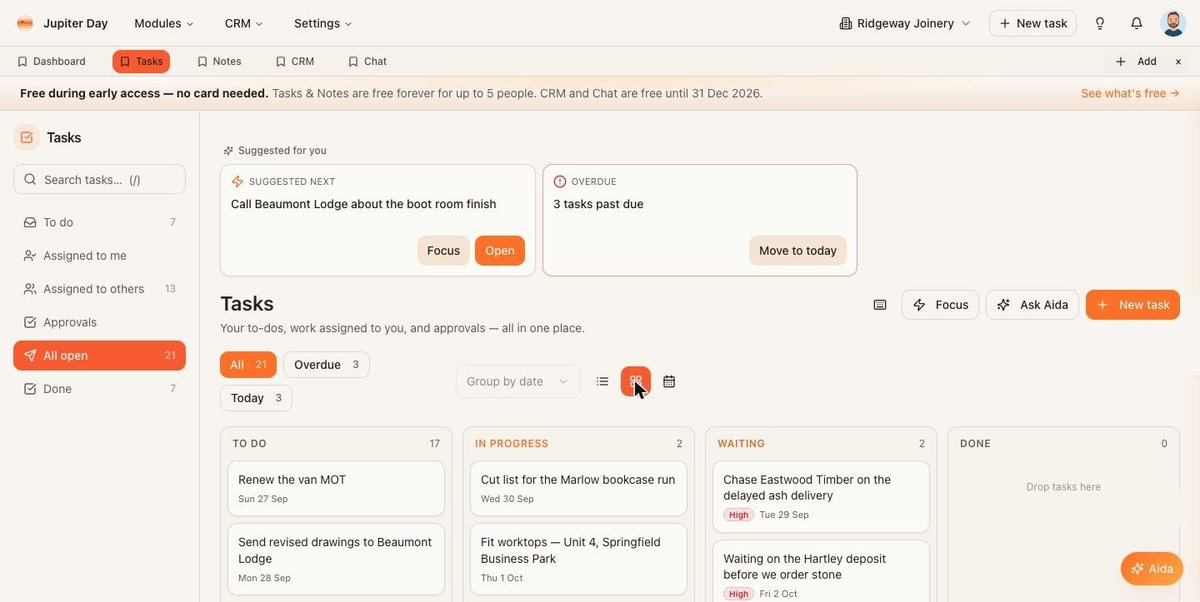
Board view.
5.3 Calendar
A month grid, Monday first, with today circled. Tasks appear on their due day; high-priority ones in red. Use ‹ › and Today in the top right of the calendar to move between months. On a computer, drag a task to another day to move it (its time is kept). Click a task to open it. On a phone the same month is shown as a day-by-day list.
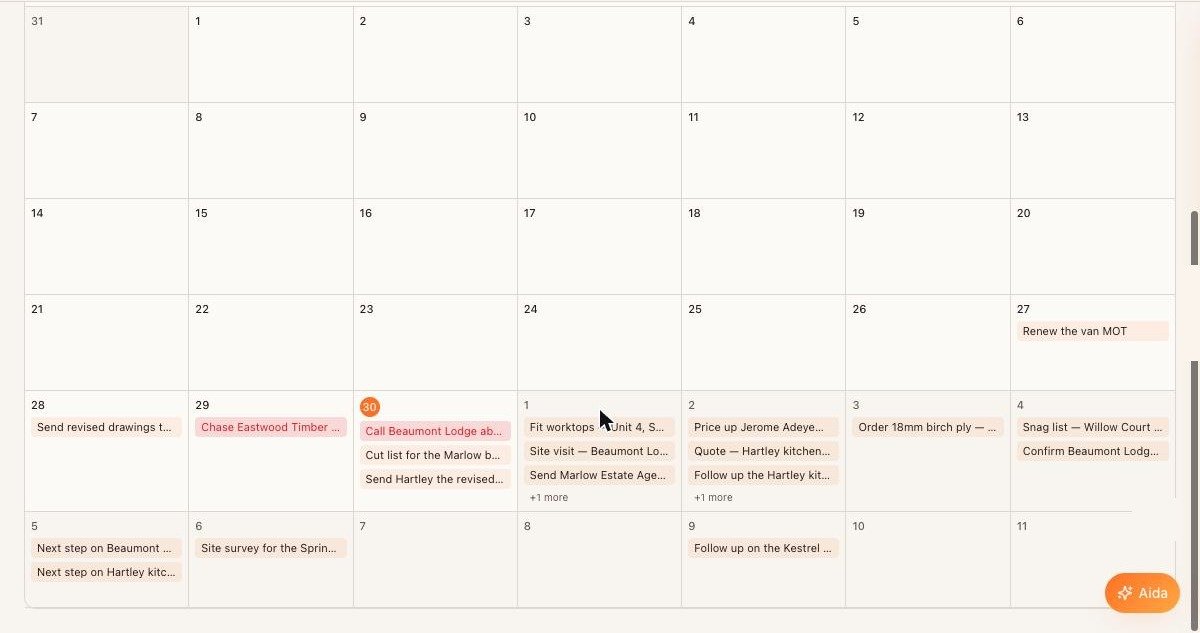
Calendar view.
6. Working on several tasks at once
- Move the mouse over a row and click the left-hand circle to select it. Shift-click another row to select everything between. Press
Ato select all visible tasks,Xto clear. - A bar appears with actions for the selection: mark done, sleep, change priority, reassign, delete.
- Press
Eto mark the selected tasks done, orSto sleep them until tomorrow.
Behind on everything? Press R, or click Reschedule all to tomorrow next to the red Overdue heading, and every overdue task of yours moves to tomorrow at 09:00 in one go.
7. Focus
Focus (top right of the page, or the Focus button on the Suggested card) takes one task at a time and puts everything else away: the title, its notes, and a 25-minute timer. Done completes it and brings up the next; Skip moves on without changing it; Sleep parks it. The counter at the top (1 of 6) shows how many are in the queue.
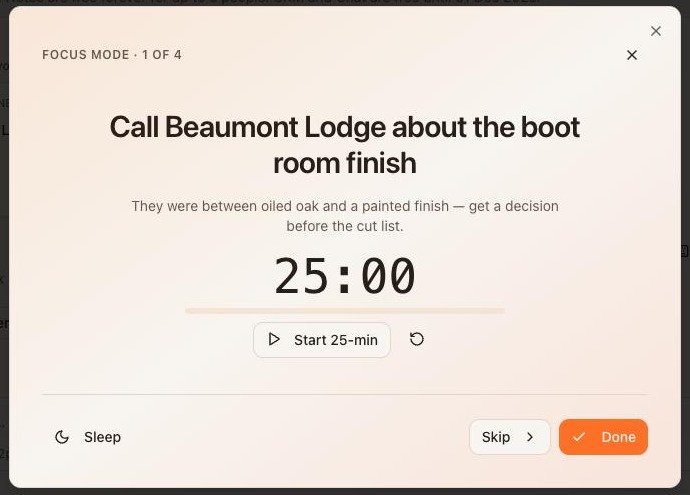
Focus mode.
8. Inside a task
Click the pencil on a row (or the task title) to open it. Below the fields from section 2.2 there are three more areas — they only exist once the task has been created:
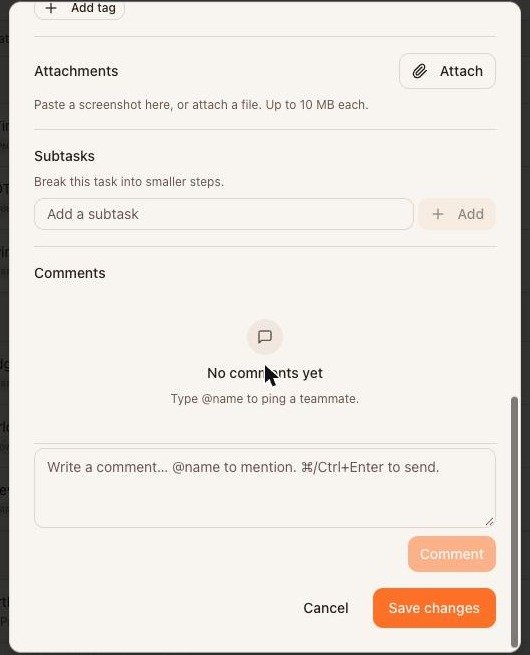
Inside an existing task: attachments, subtasks and comments.
- Attachments —
Attacha file, or paste a screenshot straight into the box on a computer. On a phone you can use the camera or photo library. Up to 10 MB each; images, PDFs and common Office files. Files are private to your workspace. - Subtasks — a tick-list for the steps. Ticking every subtask does not complete the task; you do that.
- Comments — leave a message on the task. Press
Ctrl+Enter(⌘+Enteron a Mac) to send. Only people you @mention are told (in the bell), so always type@and the name of the person you are writing to — the owner is not told automatically.
The history icon on the row shows every change — reassignments, date moves, status changes — with who made them and when.
9. Delegating
Give someone a task by choosing them under Assign to, or with @name in the quick add. They see it under Assigned to me; you see it under Assigned to others. They are told straight away, on their phone if they have alerts on. If it drifts, Nudge; if it needs a conversation, comment on it and @mention them. If you were given a task and it is not yours, reassign it from the row rather than leaving it.
10. Approvals
Some tasks are decisions rather than jobs — a workflow needs a yes, a request wants signing off. They appear under Approvals with the choices as buttons on the row. Approve or decline there; the person who asked is told.
11. Keyboard shortcuts
Press ? on the Tasks page to see this list in the app. They work on a computer; on a phone use the buttons on screen.
| Key | Does |
|---|---|
| T | Quick-add a task (works anywhere in the app) |
| N | New task (full form) |
| Q | Jump to the quick-add box |
| / | Jump to search |
| A | Select all visible |
| X | Clear selection |
| E | Mark selected done |
| S | Sleep selected until tomorrow |
| R | Reschedule all overdue to tomorrow |
| Esc | Close menus / clear search |
| ? | Show the shortcuts |
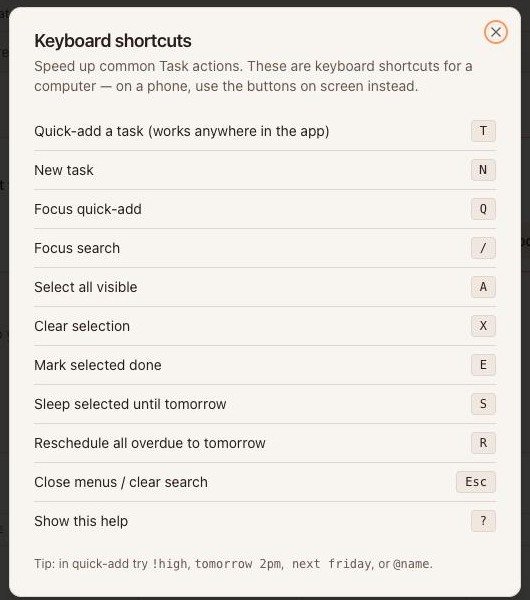
The shortcuts window (press ?).
12. Habits that make the list work
- One owner, one date, always. If two people share a job, make two tasks.
- Start the day in
Today(or on the phone's Today page). Sleep what will not happen; do not let it go red. - Give a task a time only when the time matters. Otherwise leave it at the day.
- Put detail in the task's Notes, not in the title.
- Use
Waiting on someonewith a check-back date instead of deleting or forgetting.