
Finding your way around
Updated Friday 23 October
On a computer

The top bar (workspace, New task, Aida, bell, your photo) and the module bar under it.
- The top bar: the Jupiter Day logo, or your workspace's own (click it to go to My day), the workspace switcher, + New task, the Aida button, the bell and your photo.
- The module bar: My day first (your daily page: Aida's brief, Plan my day and what's due today), then your modules, such as Tasks, Notes, Customers, Chat and Projects. Click one to open it. Owners and admins also see Settings at the right-hand end.
- Inside each area: its sections run down the left and the page is on the right. The lightbulb button shows hints and tips for the module you're in.
Your Area
Click your photo (top right), then your Area: You, Notifications, Devices, Security and Help.
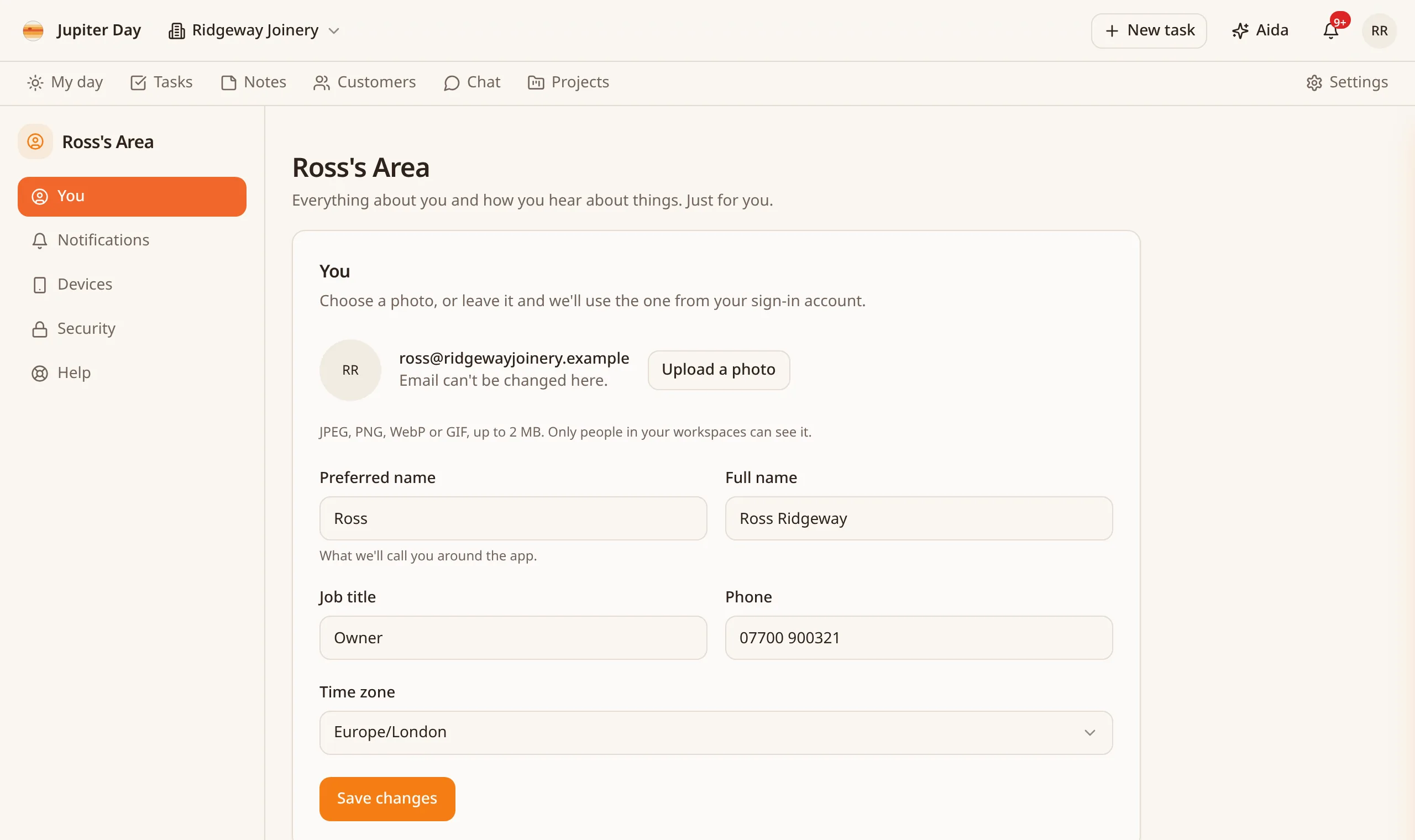
Your Area: everything about you, in one place.
On a phone
The bar along the bottom gives you My day, Tasks and Me, plus Chat and Customers when your workspace has them and you have a seat. The ☰ menu at the top lists everything else.
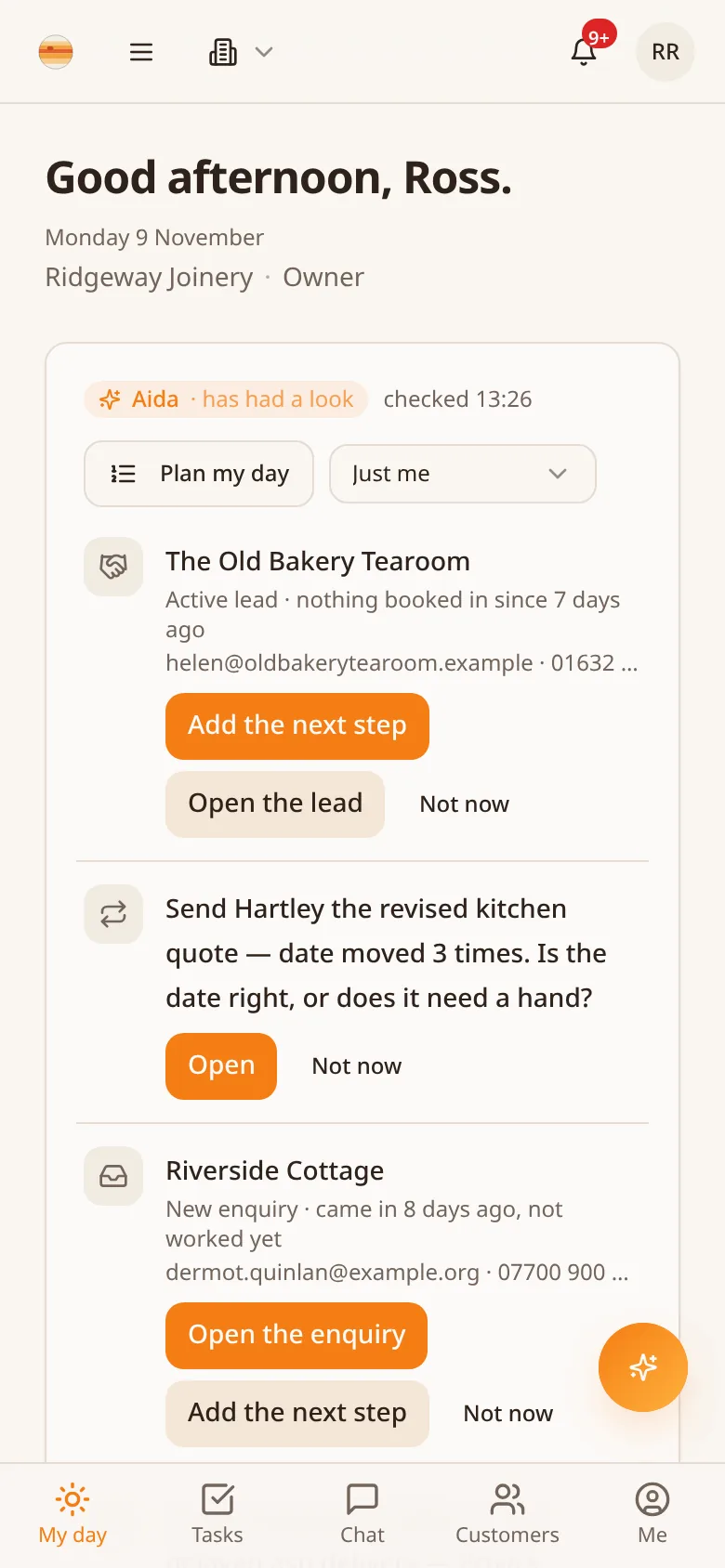
On a phone: My day, with the bar along the bottom.
Need a person?
Open your Area, then Help, then Contact support.