
Adding a task
Updated Friday 23 October
The quick way: type one line
On the Tasks page, type in the box at the top and press Enter. It understands plain words:
| You type | It means |
|---|---|
| today, tomorrow, fri, next monday, in 3 days | The date |
| 2pm, 14:00 | The time |
| !high, !low | Priority |
| @Dan | Give it to Dan. Type their name exactly as it shows in Jupiter Day (if it's one word), or the part of their email address before the @. Capitals don't matter. |
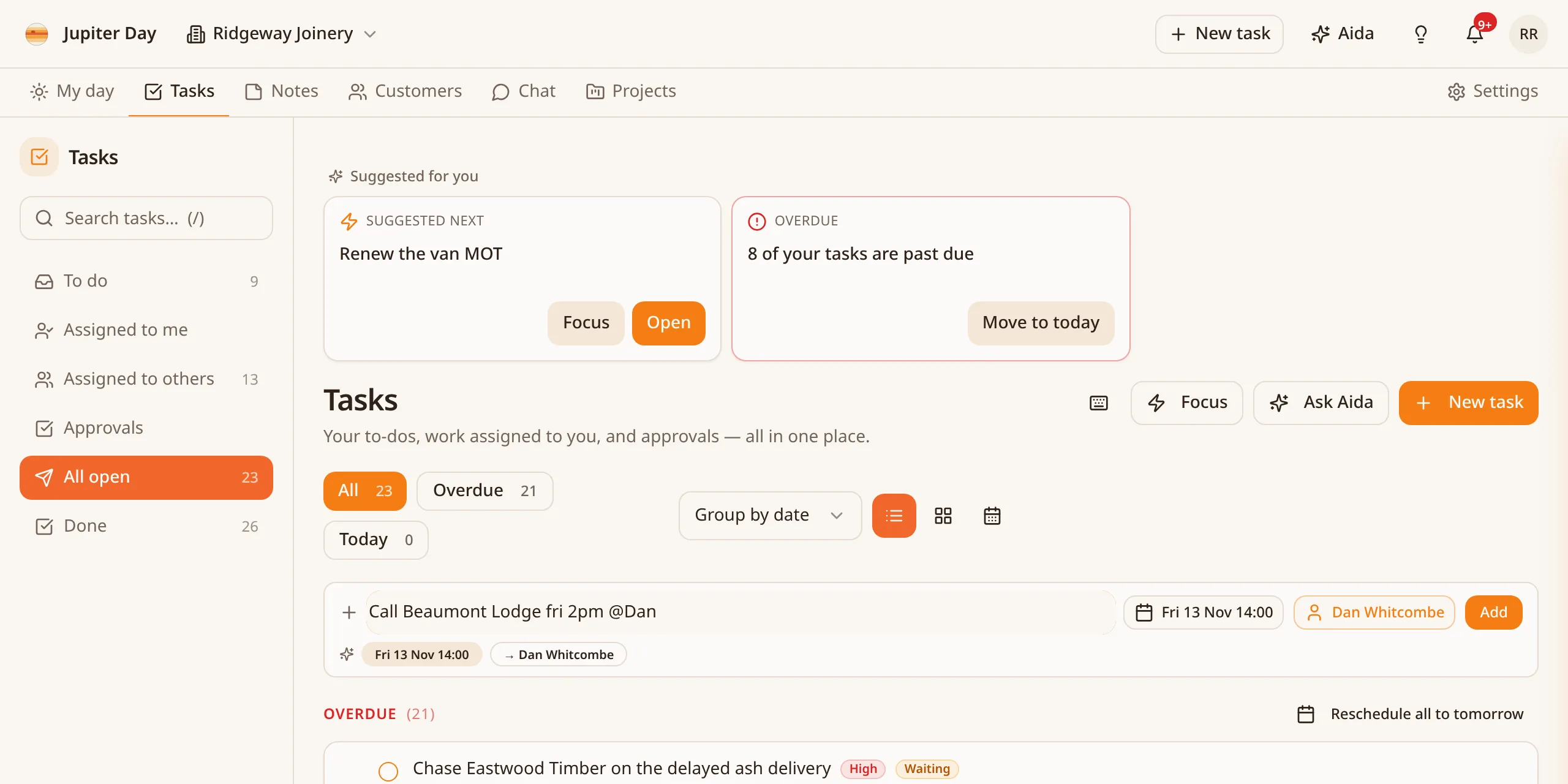
Quick add: the line underneath shows what it understood before you press Enter.
If quick add can't find a date, it asks you for one.
Press T anywhere in the app (when you're not typing in a box) to open the same quick add.
The full form
Click + New task, or press N on the Tasks page. It has:
- the title, and who it's for (Assign to);
- status, date and time;
- repeats (with Repeat until) and priority;
- notes, tags, Visible to teammates and Waiting on someone.
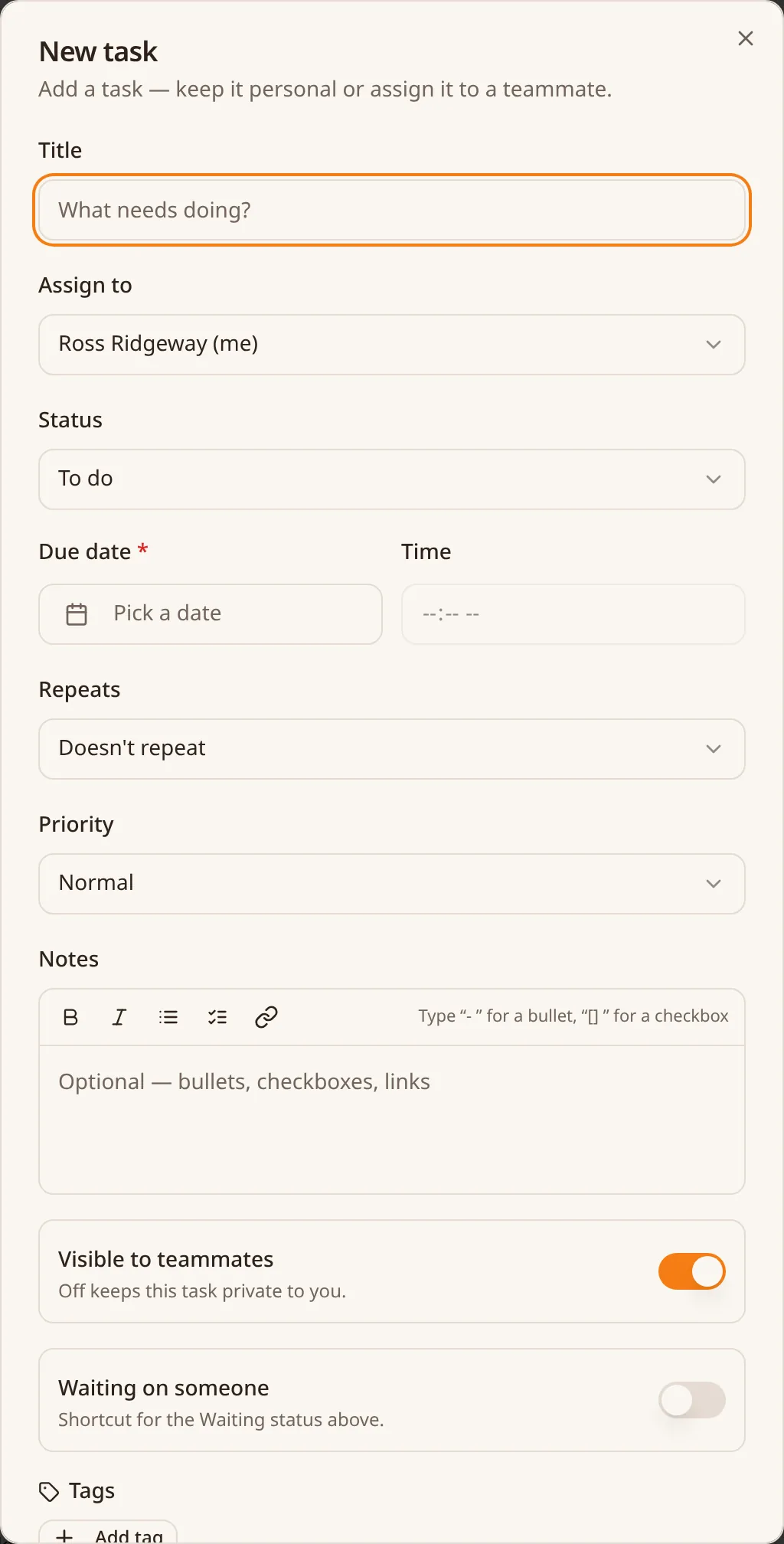
The full form.
Subtasks and comments can be added once the task exists.
Every open task needs a date
It's what keeps the list honest. In the full form, if you leave the time empty, the task is due at 09:00. In quick add, "today" with no time means 17:00.